Lossless · free · no uploads
DPI converter — change image DPI to 300 for print
Pick 300, 600 or any value and download the same picture with a corrected print size. Nothing is recompressed, nothing is uploaded, and the saved file is read back before the download unlocks.
Batch converter
No files yet
Drop images to set their DPI
JPEG · PNG · BMP · TIFF · up to 30 files · 100 MB each
Nothing is uploaded. Your images are opened and edited privately on your own computer.
01
What a DPI converter actually does
Changing DPI sets the size your file is printed at — it does not change how many pixels the image holds.
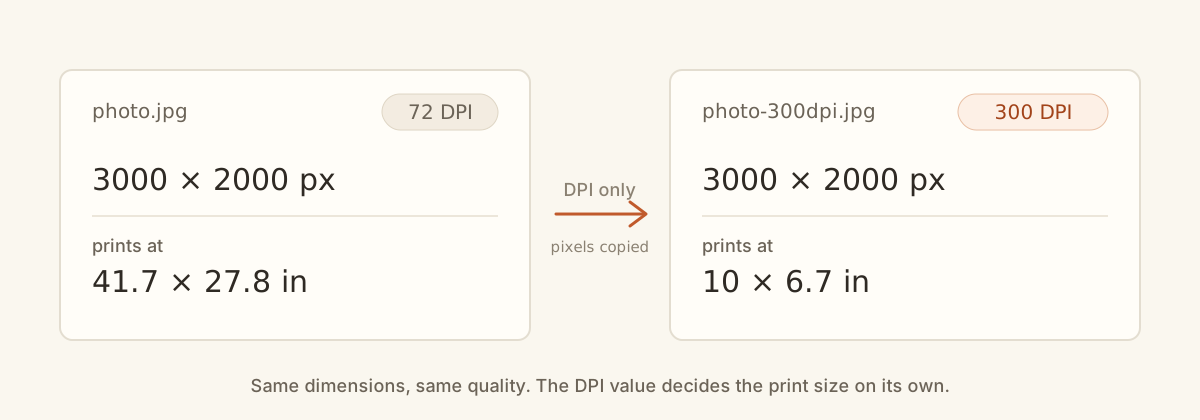
DPI is a label inside an image that tells print software how densely to place the pixels it already has. Changing it does not stretch, sharpen or redraw anything. A photo that is 3000 px wide prints 10 inches wide at 300 DPI. Set the same file to 150 DPI and it prints 20 inches wide from the very same pixels, just at half the density.
That is why the converter only updates the DPI label by default. Your picture and its file size are left completely alone, and the download is the same image with a new print instruction. If you need more pixels than the file actually holds, changing DPI will not give them to you — that takes an image resizer, which can smooth an enlargement but never brings back detail the camera did not record.
02
How this DPI converter works
It reads your current DPI, writes the new one, then re-checks the saved file before you can download.
- 01
Read the current DPI
The converter opens your file, finds where its DPI is stored, and shows what it says now. If a file holds two conflicting values, you see both.
- 02
Set your new DPI
Your chosen value replaces the old one in place. The picture itself is never redrawn or recompressed.
- 03
Verify before download
The saved file is opened again and checked. The download only unlocks once the new DPI is confirmed to be correct.
Technical details — where DPI lives and how it is edited
Each format stores its resolution in a different place: JPEG in the JFIF density fields and the EXIF X/Y tags, PNG in the pHYs chunk, BMP at bytes 38 and 42 of the DIB header, and TIFF in IFD tags 282, 283 and 296. Multi-page TIFFs are patched on every page, and when two blocks disagree both values are shown.
In default mode the compressed pixel data is copied byte for byte, so a JPEG gets no extra round of lossy compression and EXIF, GPS, ICC profiles and embedded thumbnails survive. Only the resolution fields change, plus a small header segment added when a file had no resolution block to begin with. In PNG the pHYs chunk is inserted before IDAT and its CRC is recomputed; new EXIF entries are written with corrected offsets so thumbnails, MakerNotes and sub-IFDs still resolve after the edit.
WebP and AVIF are decoded and re-encoded through the browser canvas, so some metadata is dropped. HEIC is read in and written out as PNG or JPG, because browsers rarely encode HEIC.
03
Which DPI should you use?
Common presets and what each one is really for.
| Value | Typical use | What it means |
|---|---|---|
| 72 DPI | Web and screen graphics | An older default. On websites, pixel dimensions matter more than the DPI number. |
| 150 DPI | Large prints and drafts | Often fine viewed from a distance. Check what your print provider requires. |
| 300 DPI | Photos, books, print-on-demand | A common setting for print. Your file still needs enough pixels for the size. |
| 600 DPI | Line art and scans | Use only when your printer or workflow asks for it. Changing DPI alone adds no detail. |
04
Will it print sharp at that size?
A DPI tag alone does not guarantee a sharp print. The image needs enough pixels to support the paper size.
| Print size | At 150 DPI | At 300 DPI | At 600 DPI |
|---|---|---|---|
| 4 × 6 in | 600 × 900 | 1,200 × 1,800 | 2,400 × 3,600 |
| 5 × 7 in | 750 × 1,050 | 1,500 × 2,100 | 3,000 × 4,200 |
| 8 × 10 in | 1,200 × 1,500 | 2,400 × 3,000 | 4,800 × 6,000 |
| A4 | 1,241 × 1,754 | 2,481 × 3,508 | 4,962 × 7,016 |
| US Letter | 1,275 × 1,650 | 2,550 × 3,300 | 5,100 × 6,600 |
| 2 × 2 in photo | 300 × 300 | 600 × 600 | 1,200 × 1,200 |
Largest print at 300 DPI (width × height)
10.00 × 6.67 in
25.4 × 16.9 cm · 6.0 MP
Thin at this size
Printed at 8.00 × 10.00 in, this file works out to about 250 DPI. That fills roughly 83% of the size, so you may need to crop or resize to cover it edge to edge.
- Pixels needed for this print
- 2400 × 3000 px
- Pixels you have
- 3000 × 2000 px
These figures match the verdict on each file card. 300 DPI or higher is safely print-ready; 150 to 300 DPI prints but looks soft up close; below 150 DPI will look blurry on paper no matter what the DPI tag reads.
05
Which files can the converter change?
Which files you can open, and whether the picture data is kept intact after the edit.
JPEG, PNG, BMP and TIFF are the safe choices for print submissions — the DPI label is edited without touching the picture. WebP and AVIF can be opened, but rebuilding them to change the DPI can drop some metadata, and HEIC files are converted to JPG or PNG. GIF, ICO and SVG are left out on purpose: they have no editable DPI field.
| Format | Change DPI? | What happens to your image |
|---|---|---|
| JPEG | Yes, losslessly | Only the DPI label changes. The photo data, quality and metadata stay as they are. |
| PNG | Yes, losslessly | Same picture, new DPI. Nothing is recompressed. |
| BMP | Yes, losslessly | The DPI value is stored plainly in the header and is edited in place. |
| TIFF | Yes, losslessly | Multi-page files are updated on every page. |
| WebP / AVIF | Yes, but rebuilt | The file is re-encoded, so some original metadata may be lost. |
| HEIC | Converted | Output becomes JPG or PNG, because browsers rarely write HEIC. |
| GIF / ICO / SVG | No | GIF has no DPI field, and SVG is a vector with no fixed resolution. |
06
A higher DPI cannot make a blurry print sharp
A higher DPI number never creates pixels that were not there.
Resizing changes the pixel dimensions, re-encodes the file, and usually makes it larger — and it can drop metadata along the way. A 72 DPI file that already holds enough pixels is print-ready as it is and needs none of this, so check the print-size verdict above before you resize anything.
Colour is a separate step. The DPI converter does not convert RGB to CMYK, because a browser canvas is RGB-only and a quick conversion shifts colours. Ask your print lab which colour profile they expect and convert in a colour-managed application.
DPI converter questions people ask
Short answers to the questions that come up most often after a DPI edit.
What does an image DPI converter do?
It changes the DPI value stored inside your file, which tells printing and layout software how large to print the pixels you already have. On JPEG, PNG, BMP and TIFF it edits only that label, so the picture and its quality stay exactly the same.
How to convert photo to 300 DPI?
Drop your photo above, choose 300 from the DPI presets, and press Convert. The tool writes 300 DPI into the file and checks the result before the download unlocks.
My image is 72 DPI. Will it look bad in print?
The tag alone does not decide that. A 3000 × 2000 px file tagged 72 DPI still holds 3000 × 2000 px, so set it to 300 DPI and it prints at 10 × 6.67 inches with full detail. A 720 × 720 px file tagged 300 DPI is still only 720 px wide and will look soft at 10 inches.
Is 600 DPI better than 300 DPI?
Only when the file holds enough pixels and the output needs them. Most photo labs and print-on-demand services ask for 300 DPI. A 600 DPI label on the same pixels just prints smaller, so check the print-size table before you bump the number.
Does changing DPI affect image quality?
No. By default the converter only changes the DPI label — it never redraws or recompresses your image, so the quality is identical. Quality changes only if you resize the picture to add or remove pixels.
Is this a free DPI converter, or is there a paid plan?
It is free — no account, no watermark, and no trial that expires. The only limits are batch size: up to 30 images, 100 MB each.
Does the DPI converter upload my images?
No. Everything runs on your own computer in the browser, so your images are never sent to a server. You can turn off your internet after the page loads and still convert.
Can an image DPI converter change many files at once?
Yes. Add up to 30 images, set one DPI, and convert the whole batch. Download each file on its own, or grab them all together as a single ZIP.
Which formats keep their pixels exactly the same?
JPEG, PNG, BMP and TIFF are edited without touching the picture data. WebP and AVIF can be opened, but changing their DPI rebuilds the file. HEIC is converted to JPG or PNG. GIF, ICO and SVG cannot have their DPI edited.